Guides / Migrate
Coming from Supabase, Appwrite, Clerk, or your own database
A two-way comparison, not a sales pitch: a concept-for-concept map, the one-line code translation, an honest list of what has no equivalent yet, and what Mudbase brings that your current stack doesn't - chat, integrations, payments, enterprise SSO, and the full project lifecycle. Read the “Watch out for” column first - that's where migrations actually break.
Skip the manual rewrite
The console can connect straight to your Supabase, Appwrite, Clerk, or Firebase project - or a plain MongoDB, PostgreSQL, or MySQL database - and move your tables, storage files, and auth users over automatically, no per-row scripting.
What the importer actually looks like
This is the real wizard, opened from a project's Settings page via Import data…. Every source shares the same shape: pick a vendor, paste read-only credentials, connect.
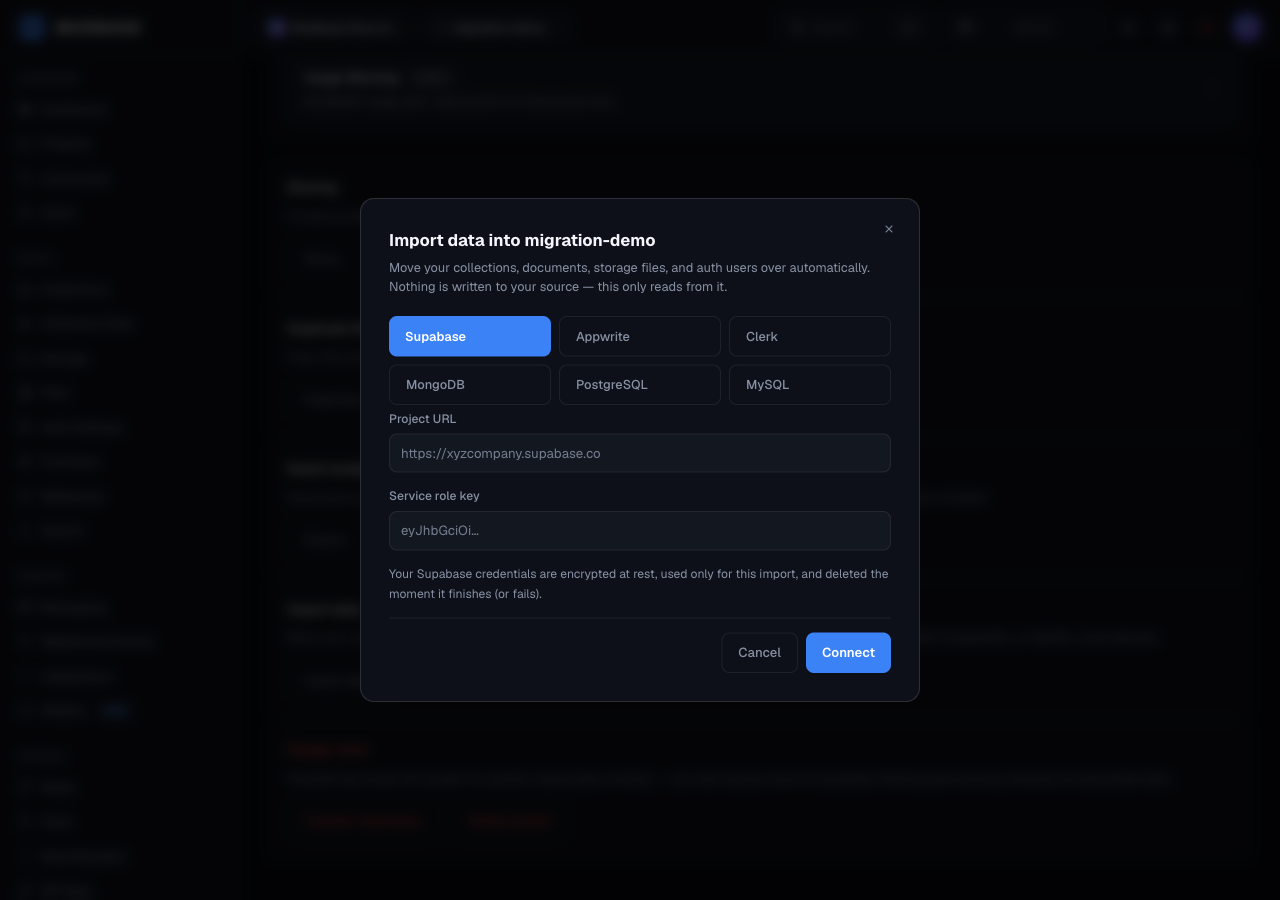
- The vendor tabs - Supabase, Appwrite, Clerk, Firebase, MongoDB, PostgreSQL, and MySQL. Switching tabs swaps the fields below for whatever that source actually needs. (This capture predates the Firebase tab; it connects the same way, with a service-account key - see Importing from Firebase below.)
- Exactly what the connector reads with, nothing more - a project URL and service role key for Supabase, a connection string for MongoDB. Encrypted at rest, used once, then deleted whether the import succeeds or fails.
- Stays disabled until both fields are filled - there's no way to submit a half-empty form.
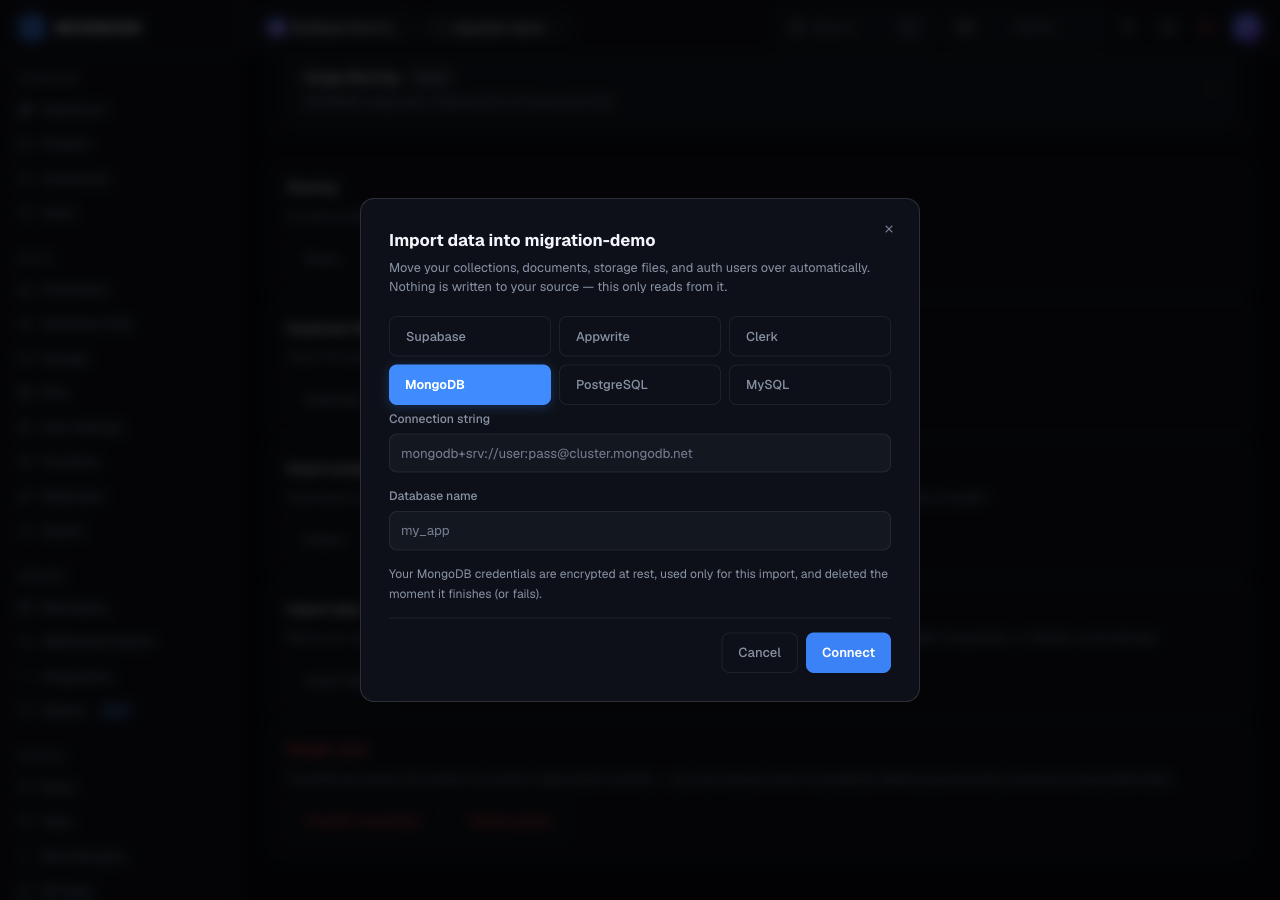
- MongoDB now highlighted instead of Supabase.
- A
mongodb+srv://connection string plus the database name to read from - the generic-database shape that PostgreSQL and MySQL also use, just with their own connection format.
Importing from Firebase
Firebase is a first-class guided source, alongside the others. It connects a little differently - with a service-account key instead of a URL and password - and it moves three Firebase products in one pass: Cloud Firestore, Firebase Authentication, and Cloud Storage.
- Connect with a service account. In the Firebase console, open Project settings → Service accounts and generate a new private key (a JSON file). Paste that JSON into the Firebase tab of the importer. It is used in-memory to authorize the read, encrypted at rest for the duration of the job, and never written to disk. If your files live in a non-default bucket, you can pass its name explicitly; otherwise the project's default bucket is used.
- Scan. Mudbase lists your Firestore collections - including subcollections - and reports a document count per collection plus your Firebase Auth user count, so you can see the whole shape before anything is written.
- Import. Firestore documents come across into matching Mudbase collections. Each subcollection becomes its own collection named after the subcollection id, with a parent-path field on every document preserving where it nested. Auth users import with their email, verified flag, and provider links. Cloud Storage objects are copied into Mudbase buckets - the files themselves, not just metadata.
- Reconcile the counts. The importer reports how many documents, users, and files it moved against what the scan found, and flags any collection where nested data may have been sampled rather than fully enumerated, so you can confirm the numbers line up.
What does not come across: Security Rules (re-model them as Mudbase collection permissions), Cloud Functions (re-implement as Mudbase Functions), user passwords (Firebase hashes aren't portable, so imported users reset on first sign-in), and Firebase Realtime Database (the separate JSON-tree database - export and import that on its own if you use it). The Firebase tab below has the full concept map, the one-line code translation, and the honest gap list.
Last updated: October 2026
Edit this page on GitHub