Console Guides
Auth Settings
Auth Settings controls how your project's end users sign up and sign in - email verification, alternative sign-in methods, and CAPTCHA protection.
Find it
Auth Settings is in the sidebar under the Build group.
Global sign-up and sign-in rules
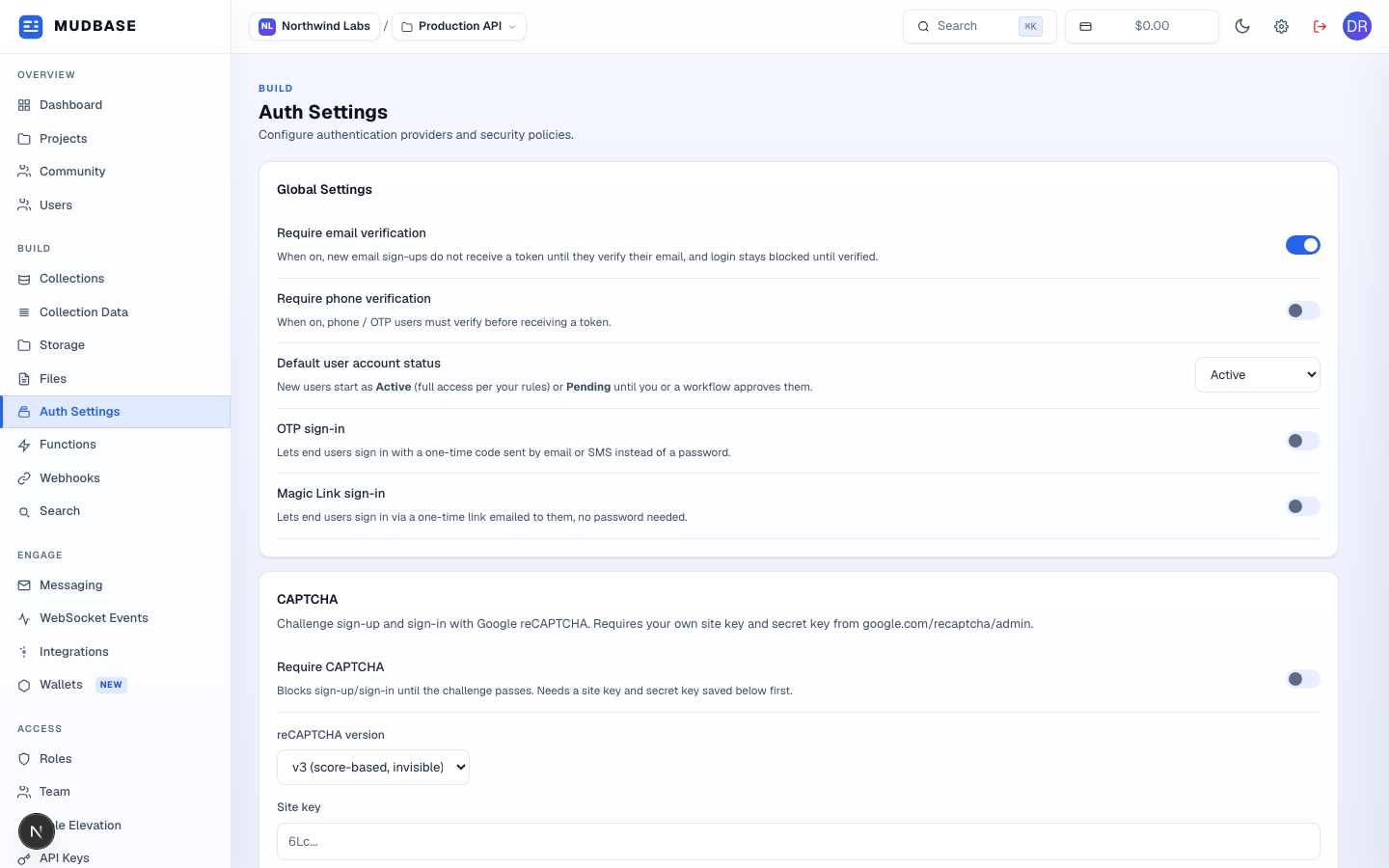
- Require email verification - when on, a new sign-up gets no token until they click the link in their verification email, and sign-in stays blocked until then.
- Default user account status decides whether a brand-new user starts Active (full access right away) or Pending until you or a workflow approves them.
- OTP sign-in lets end users sign in with a one-time code sent by email or SMS instead of a password.
- Magic Link sign-in lets end users sign in via a one-time emailed link - no password at all.
CAPTCHA
- Toggle Require CAPTCHA to block sign-up/sign-in until the challenge passes. It needs a site key and secret key saved first - leave it off until those are in place.
- Choose the reCAPTCHA version - v3 (score-based, invisible to the user) or v2 (the classic checkbox challenge).
- Paste the site key from your own google.com/recaptcha/admin registration (scroll down for the matching secret key field).
Note
These settings apply to your project's end users - the people who sign up inside your app. They're unrelated to how you and your team sign in to this console.