Console Guides
Messaging
Messaging sends email, SMS, and push notifications to your app's end users and tracks delivery stats. Push works out of the box with no setup - Mudbase manages the push credentials for you. Bringing your own SMS provider or your own push credentials is optional, per project.
Find it
Messaging is in the sidebar under the Engage group.
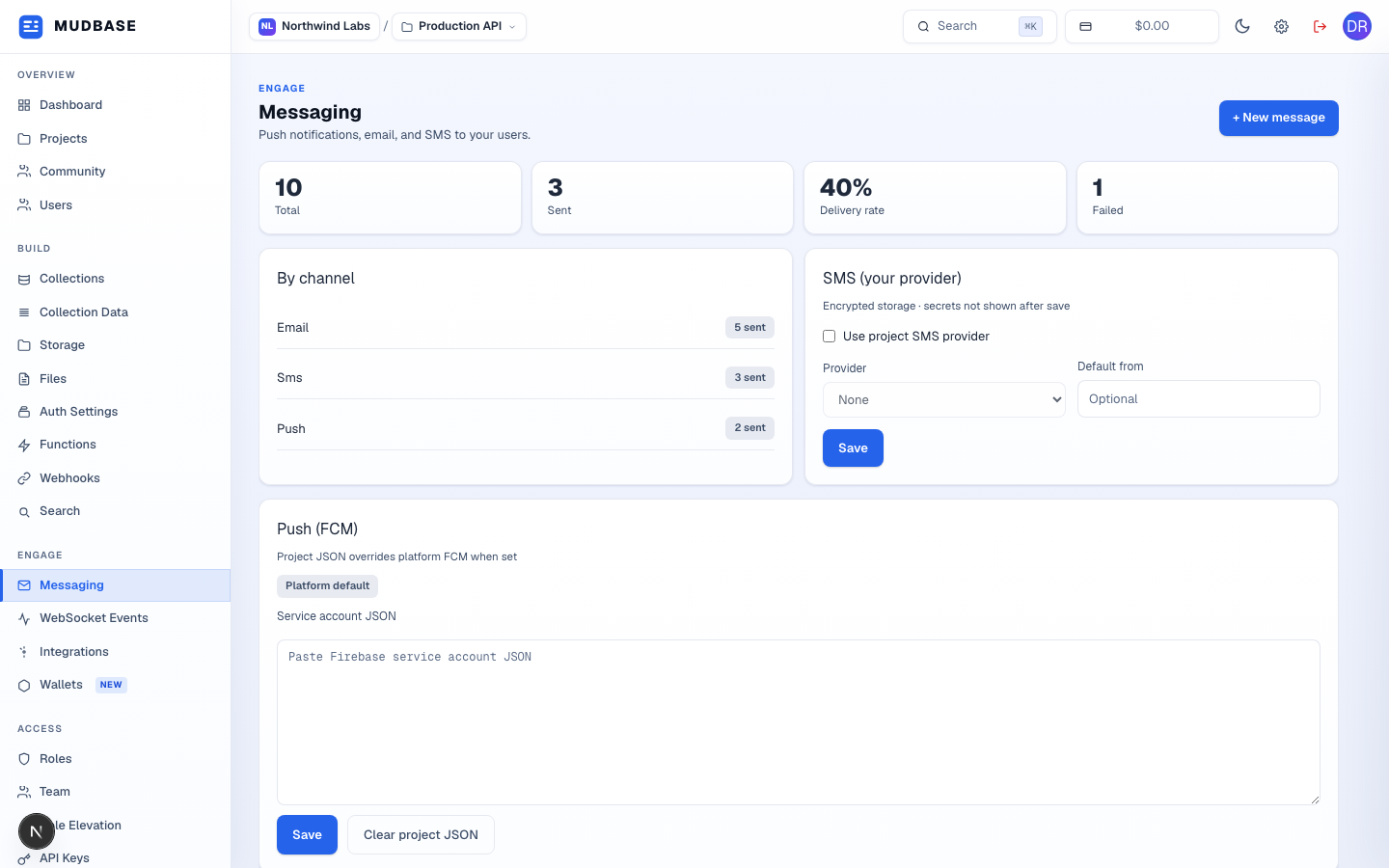
- Click + New message to compose and send an email from the dashboard directly.
- Total and Sent come from message history; delivery rate uses provider-confirmed
deliveredcounts when available, falling back to a send-success rate otherwise. - How many messages of each type - email, SMS, push - have been sent.
- Bring your own SMS provider - Twilio, Termii, or Africa's Talking. Toggle Use project SMS provider, pick a provider, set a default from, and paste that provider's credentials. Secrets are encrypted at rest and never shown again after save - leave the secret field blank on a later edit to keep the existing one.
- Optional. Push already works with no setup here - Mudbase manages the push credentials, so you can send push without touching this panel. Use it only if you want push delivered from your own push provider account: paste your own push service account JSON to override the platform default for this project. Clear project JSON reverts to the platform default.
Compose a message
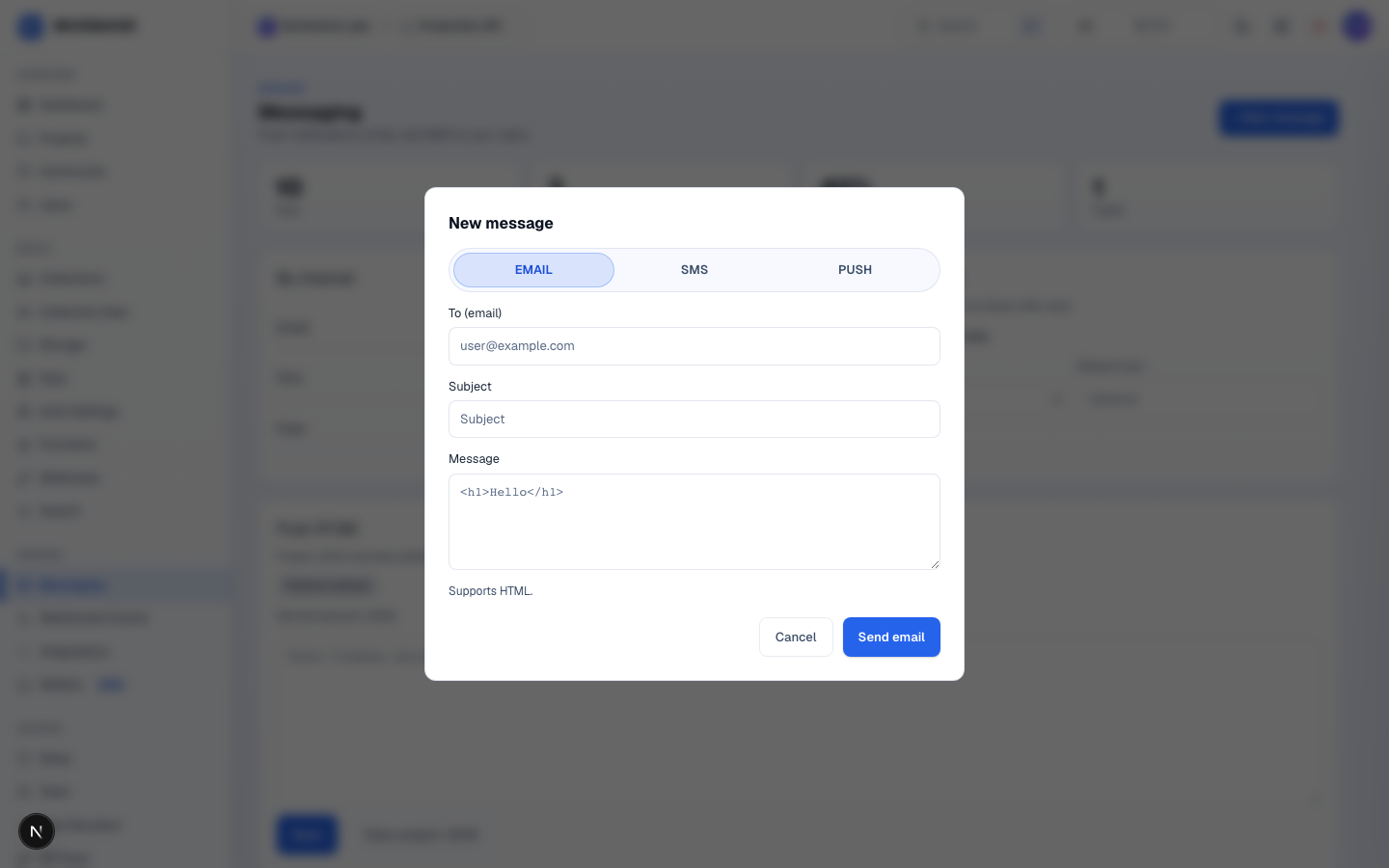
- Fill in the recipient, subject (email/push only), and message body, then send.
- Only the Email tab actually sends from this dialog - supports HTML in the message body. SMS and push are dashboard-visible for reference but are sent through the Messaging API, not this compose form.
Message history
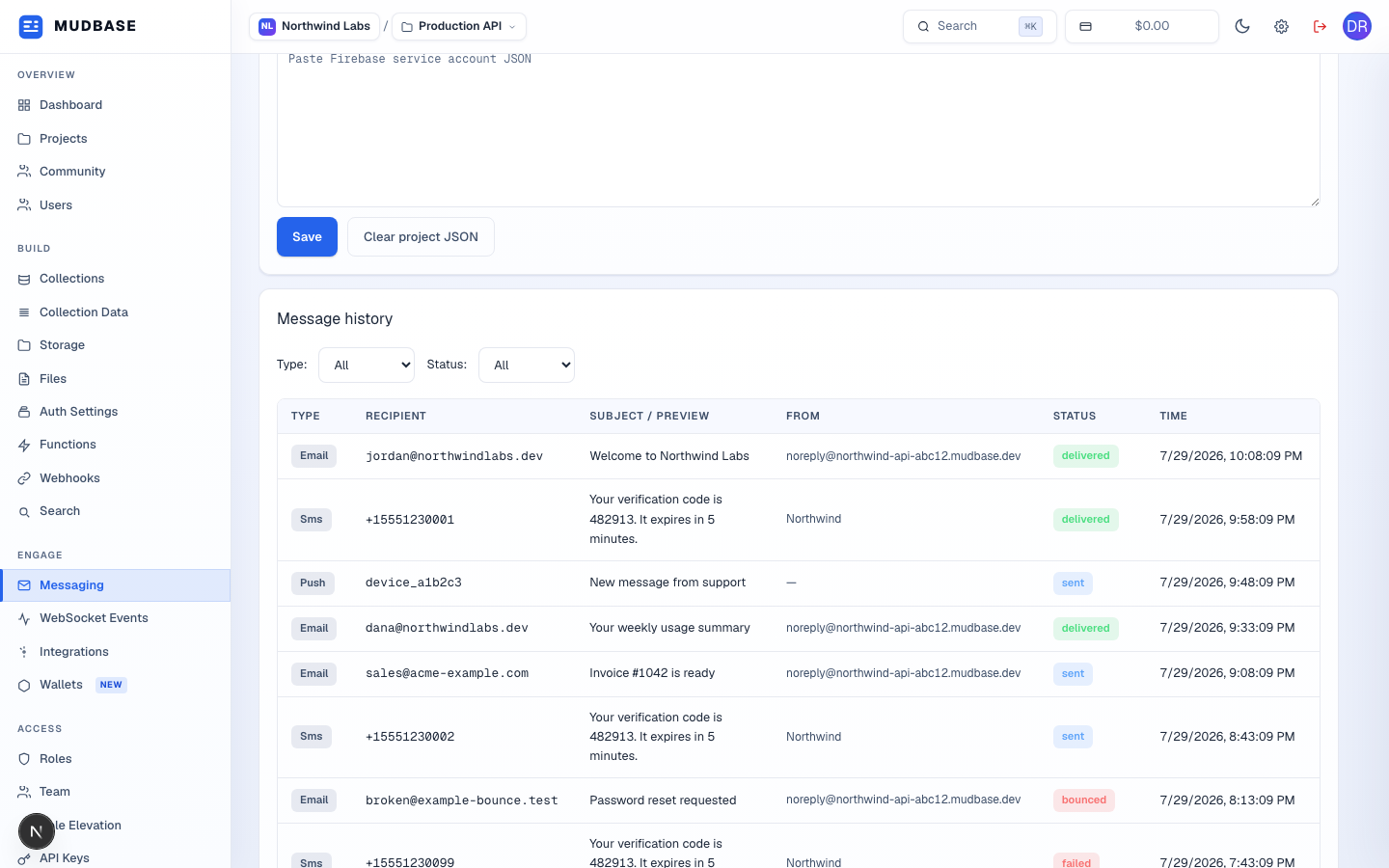
- Narrow to email, SMS, or push.
- Filter by lifecycle status:
sent(accepted by the provider),delivered(provider-confirmed via webhook), or a failure state -bounced,complained,suppressed,failed. - Each row shows the recipient, subject or a content preview, the from address, status, and timestamp. The list polls automatically every 15 seconds so a
sentrow that later gets a delivery webhook updates todeliveredwithout a manual reload.
Note
sent only means the message was accepted by the provider's API - it is not delivery confirmation. delivered is the real, webhook-confirmed terminal success state, which is why the two are shown as separate statuses rather than collapsed into one "success" badge.