Console Guides
Storage
Storage holds buckets - containers for files your app uploads, each with its own public/private access setting.
Find it
Storage is in the sidebar under the Build group.
Create a bucket
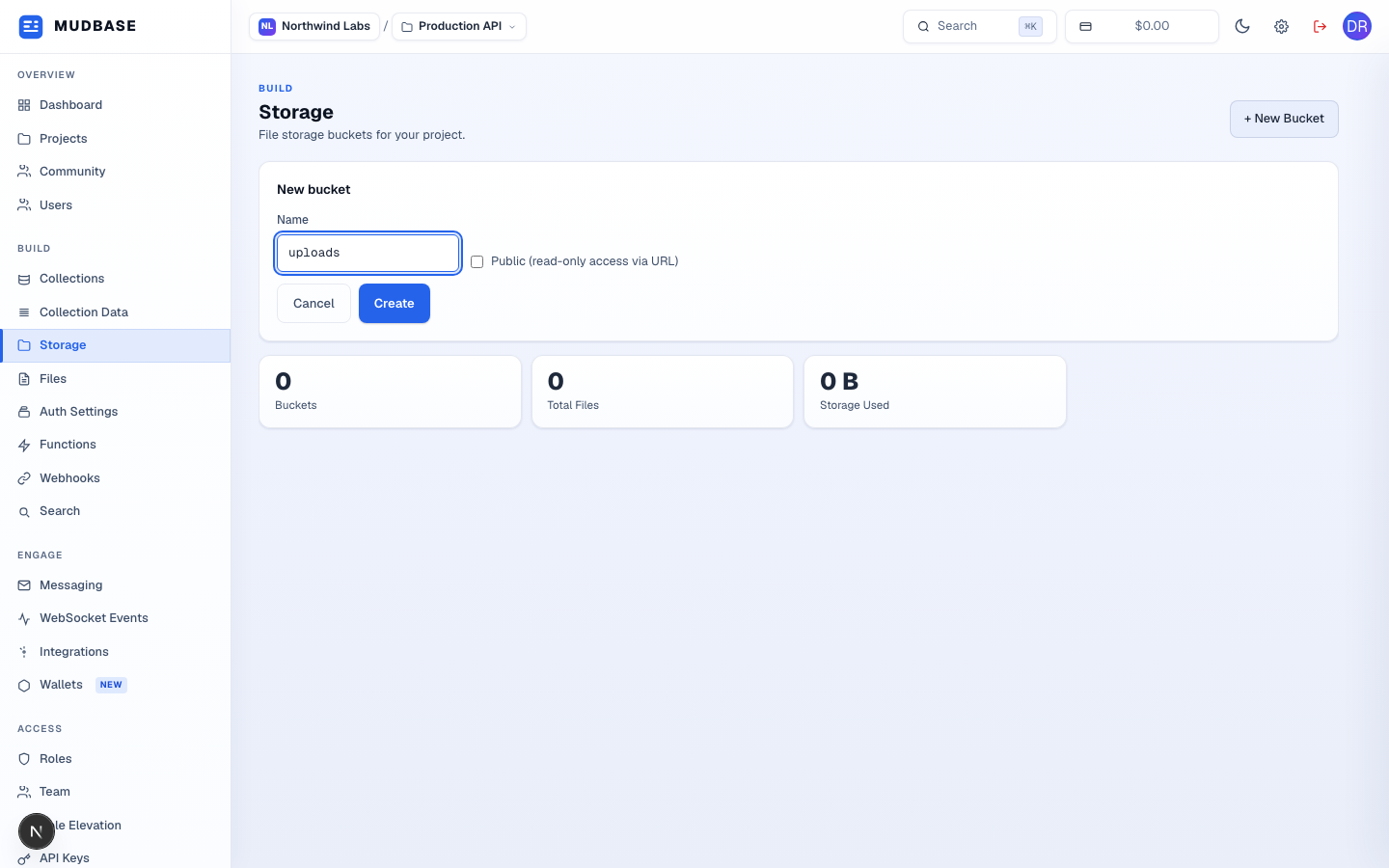
- Name the bucket after what it holds -
uploads,avatars,attachments. - Leave Public unchecked for anything that needs an authenticated or signed URL to read; check it only for files meant to be openly readable by anyone with the URL.
- Click Create. A project is capped at a number of buckets by plan - the page shows a notice once you hit that limit.
Manage a bucket
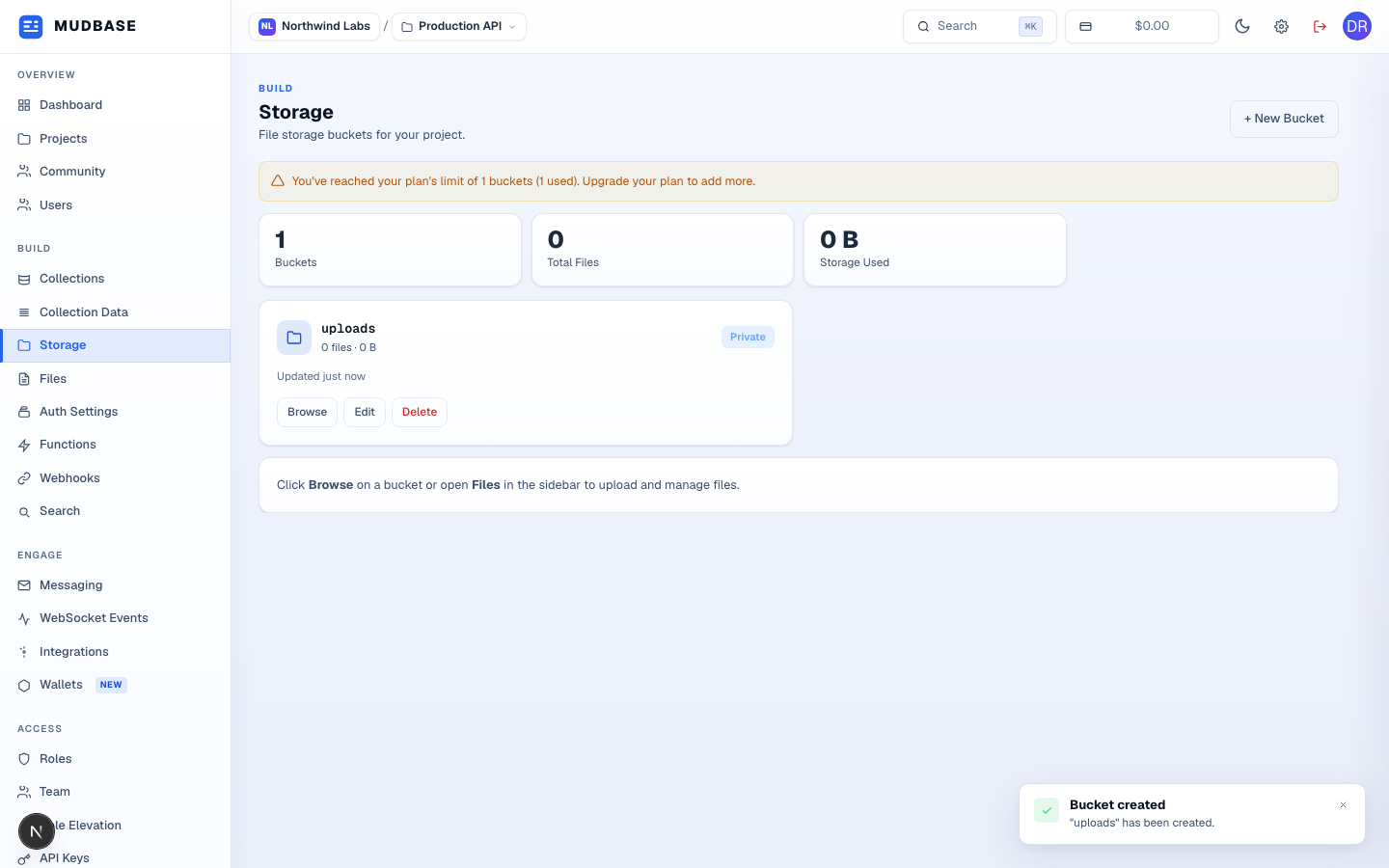
- Browse opens the bucket's Files page to upload and manage its contents; Edit changes the name or public/private setting; Delete removes the bucket and everything in it.