Console Guides
Plan and Subscription
Your org's billing home: current plan and live usage against its limits, the full plan catalog, spend limits, overage invoices, pre-purchased capacity, a prepaid credit balance, billing method, and referrals - all in one tab of Settings.
Find it
Plan and Subscription is a tab on the Settings page (Settings → Plan and Subscription), visible to org owners and admins.
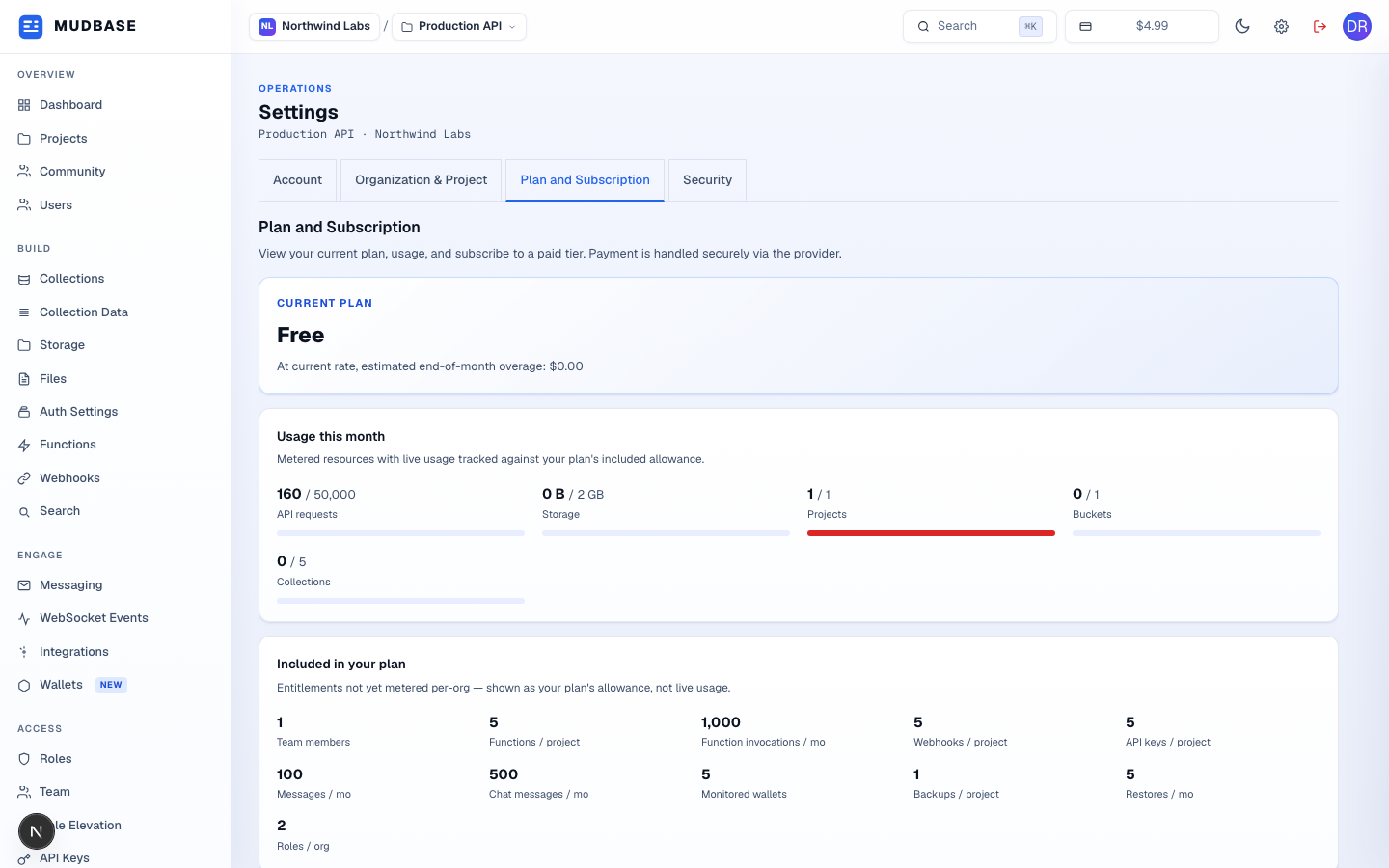
- Also reachable from Account/Organization tabs on the same Settings page.
- Your org's active plan name, an end-of-month overage estimate, and - for paid plans - the next renewal date. A
past duepayment status is called out here in red. - Live, metered resources - API requests, storage, buckets, and collections - each with a progress bar against your plan's limit. The bar turns red past 80% of the limit, as shown here on API requests. Unlimited resources (such as projects and collections on the Free plan) show no progress bar.
- Entitlements your plan grants that aren't yet tracked as live per-org usage - team members, functions, webhooks, backups, restores, and custom roles. These are shown as your plan's allowance, not a usage bar, since there's no live counter behind them yet. Messaging and chat aren't separate line items here: every message and chat message counts as an API request, so they draw from your API request allowance rather than a quota of their own, and chat channels are unlimited.
Available plans
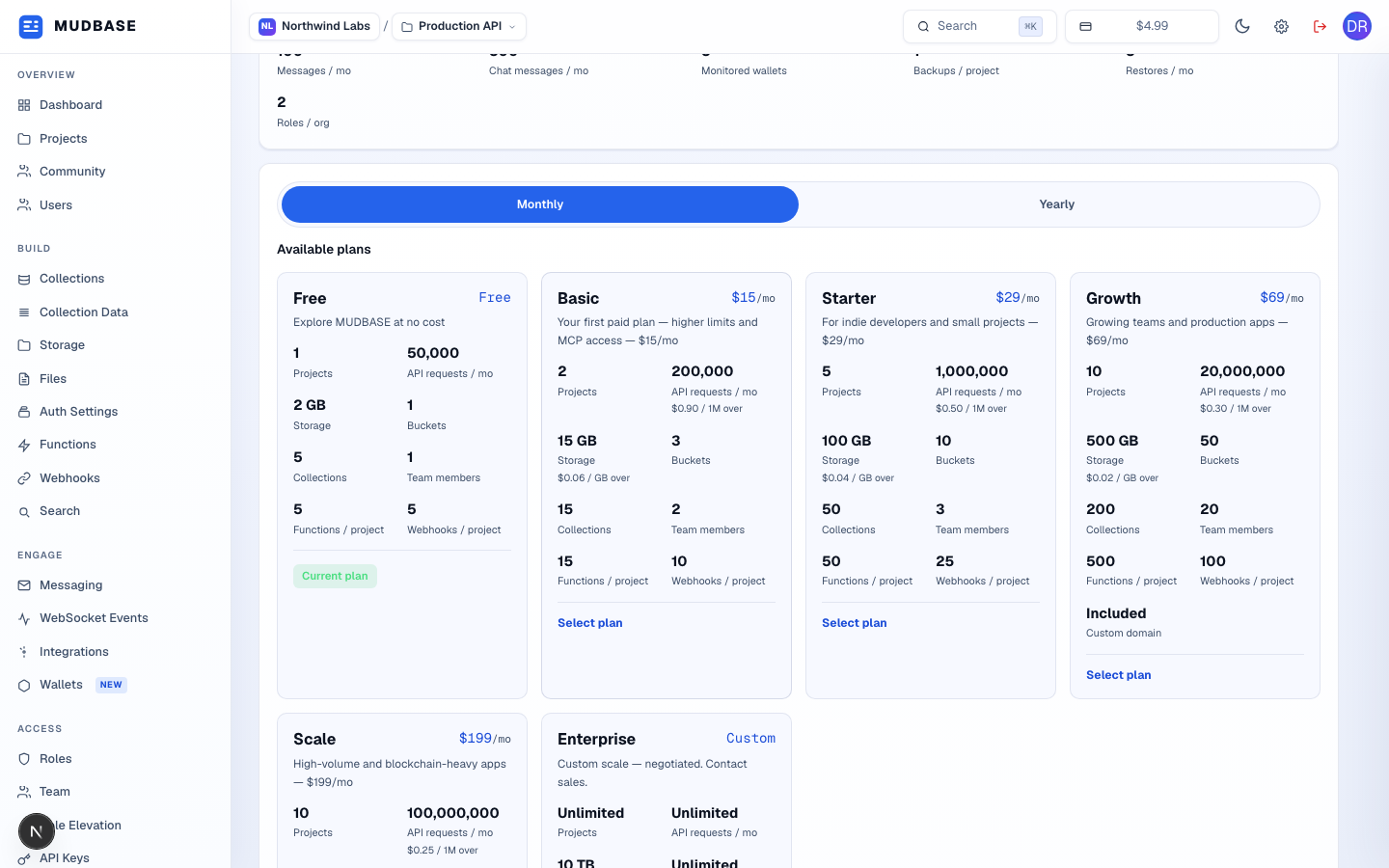
- Yearly pricing shows a "2 months free" badge on plans that have a distinct yearly price; plans without one just show the monthly price under either toggle state.
- Your current tier is marked with a Current plan badge instead of a Select action.
- Click any payable tier's card (or its Select plan link) to start checkout - redirects to the payment provider and returns you here once verified. Enterprise shows Contact sales instead, since it's negotiated rather than self-serve.
Spend limits and capacity
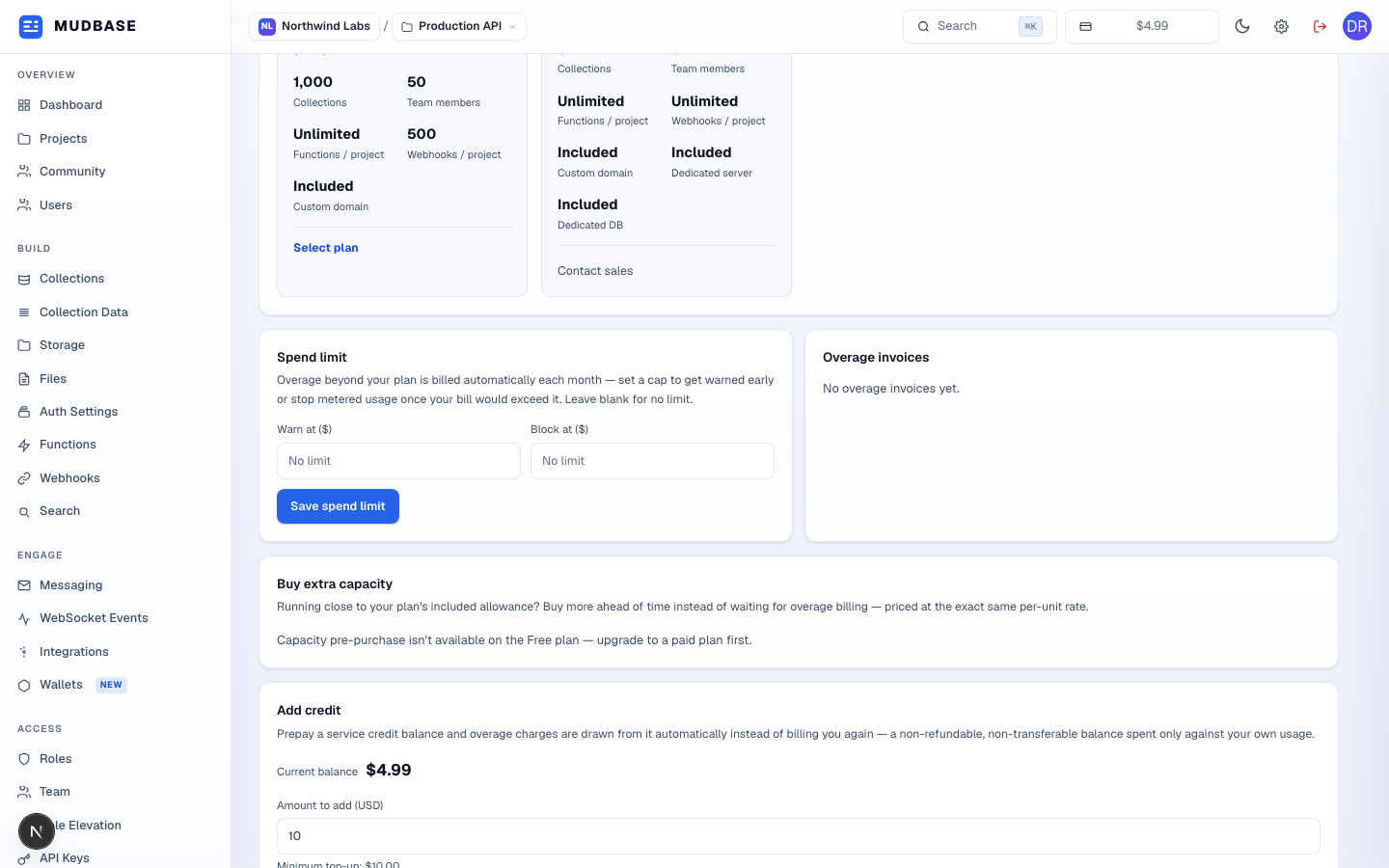
- Set a dollar amount to be warned at, and a hard cap to block further metered usage at - both optional, blank means no limit. A blocked state shows inline here until you raise the cap or upgrade.
- One row per billed overage period once your usage exceeds plan limits with overage enabled; empty is the normal state for a project within its limits.
- Buy blocks of a specific resource ahead of time at the same per-unit rate as overage billing, instead of waiting to be billed after the fact. Not available on the Free plan - upgrade to a paid plan first.
Credit balance, billing method, referrals
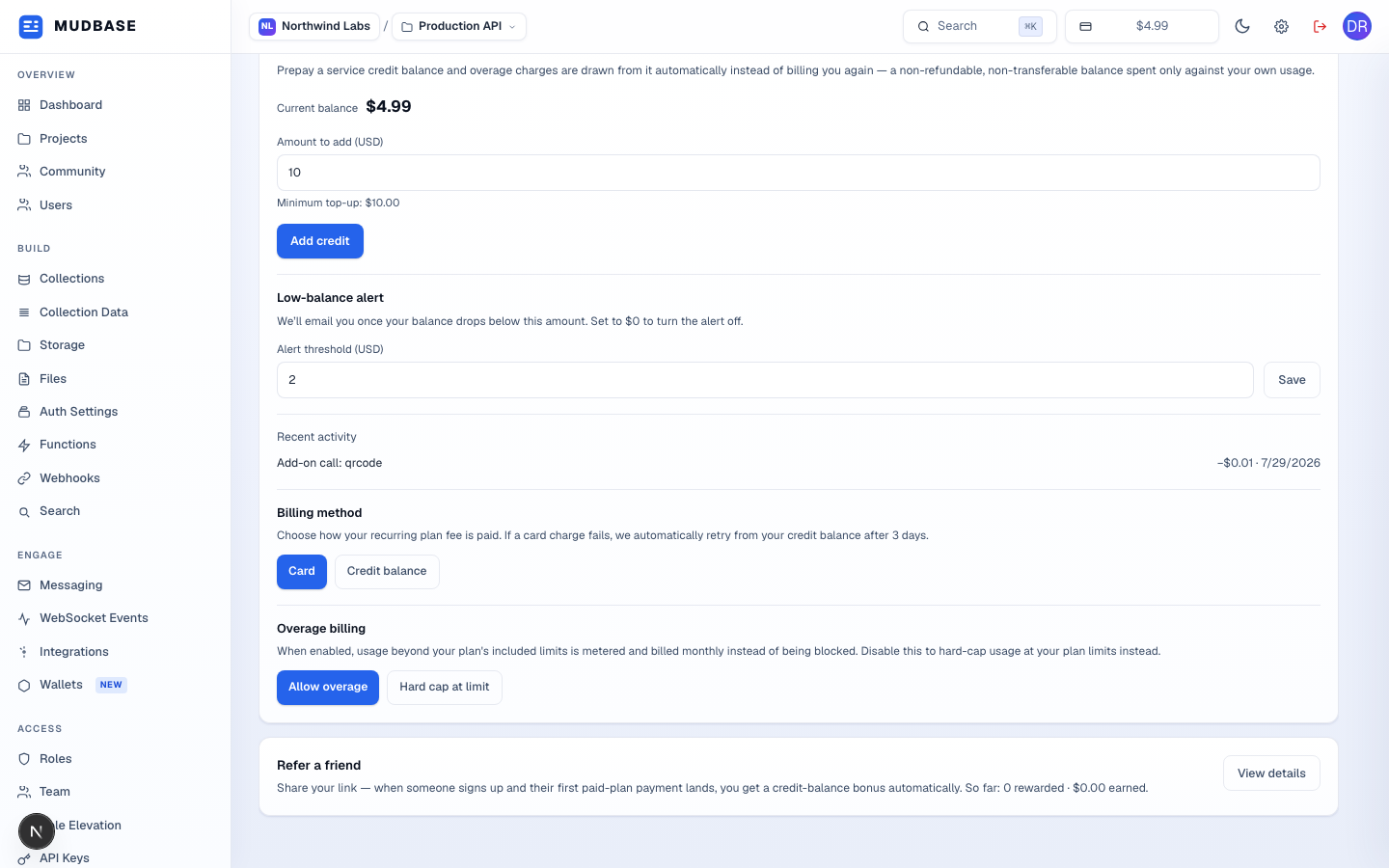
- A non-refundable, non-transferable prepaid balance - overage and add-on calls draw from it automatically instead of a separate charge. The activity log below the top-up form shows real deductions, like the
Add-on call: qrcodeentry here from running the QR Code add-on. Set a low-balance alert threshold to get emailed before it runs dry. - Choose whether your recurring plan fee charges a Card or draws from your Credit balance. A failed card charge automatically retries from credit balance after 3 days regardless of this setting.
- Allow overage meters and bills usage beyond your plan's limits monthly; Hard cap at limit blocks usage instead of billing for it. This is a separate switch from the spend-limit dollar caps above.
- A summary teaser - share your referral link, and a successful referred signup's first paid payment credits your balance automatically. Click View details for the full link, history, and stats on the Referrals page.
Note
Only org owners and admins see this tab - it's filtered out of Settings entirely for other roles, the same as Organization & Project.