Console Guides
Collection Data
Collection Data lets you browse, add, edit, and delete individual documents inside one collection - a spreadsheet-like view of your actual app data.
Find it
Collection Data is in the sidebar under the Build group. Pick a collection from the dropdown next to the page title - it opens empty until one is selected.
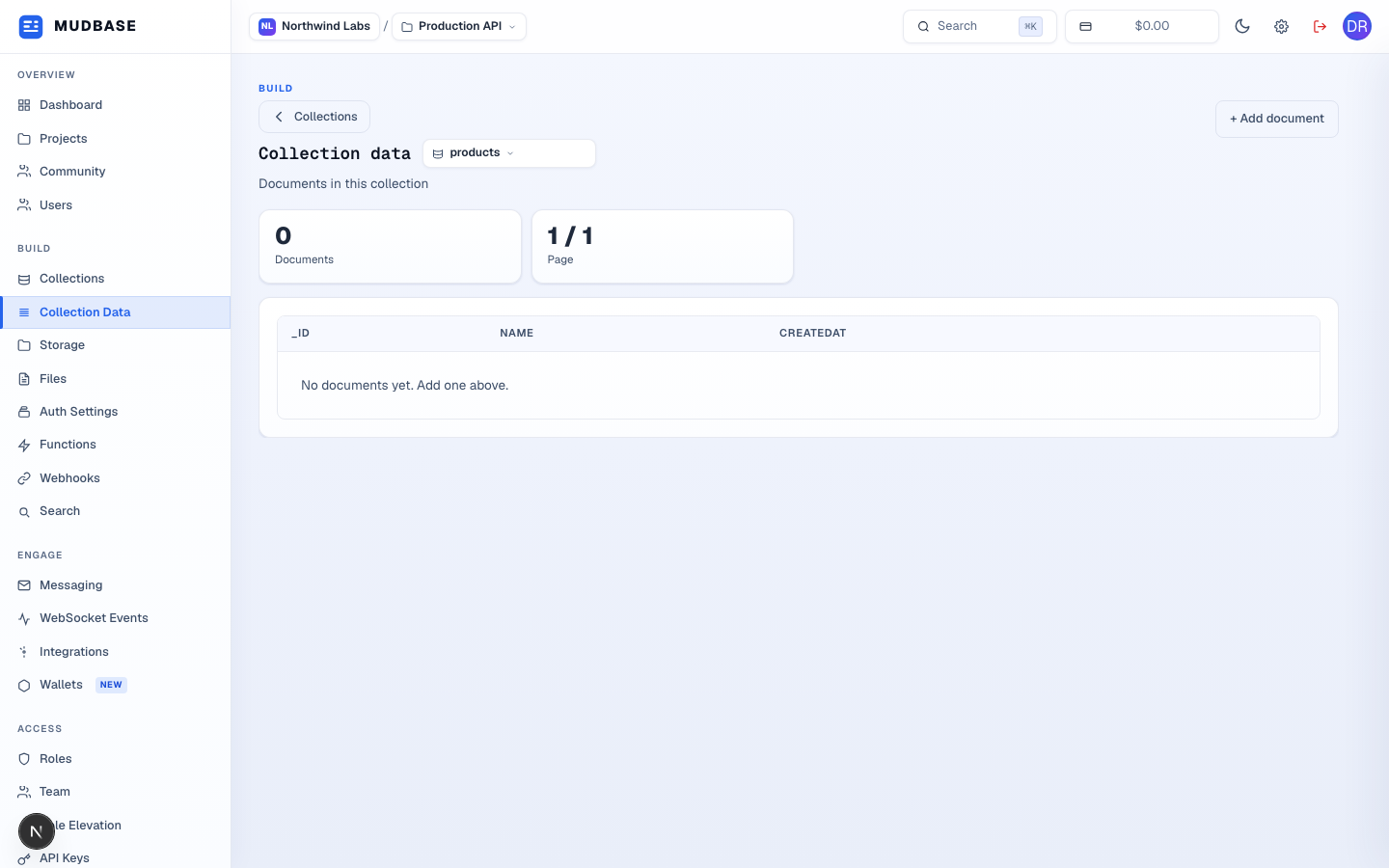
- Click the collection-name dropdown to switch which collection's documents you're viewing.
- Click + Add document to create the first record.
Add a document
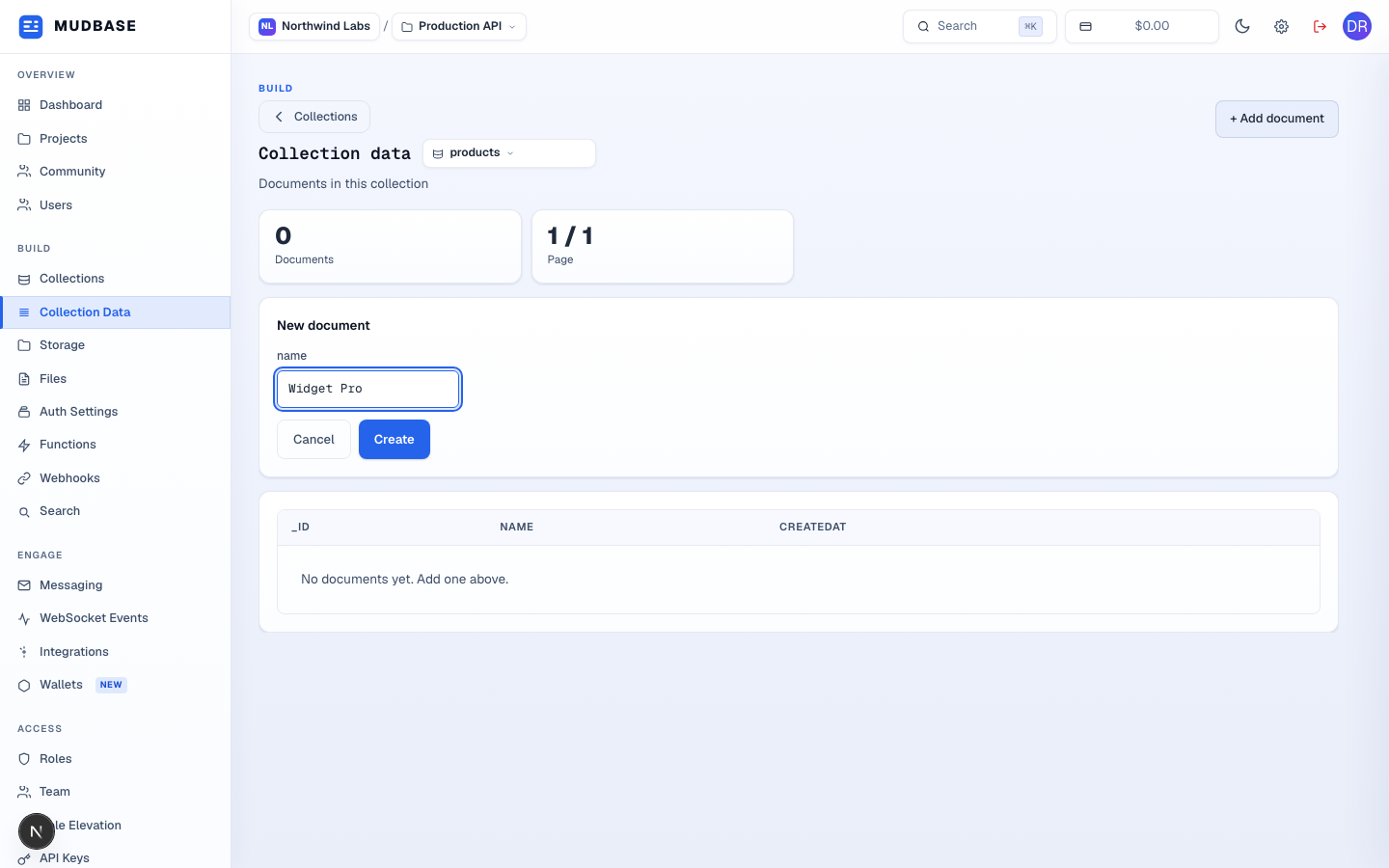
- One input appears per field defined on the collection's schema - see Collections to add or change fields.
- Click Create. The new document appears in the table immediately.
The document table
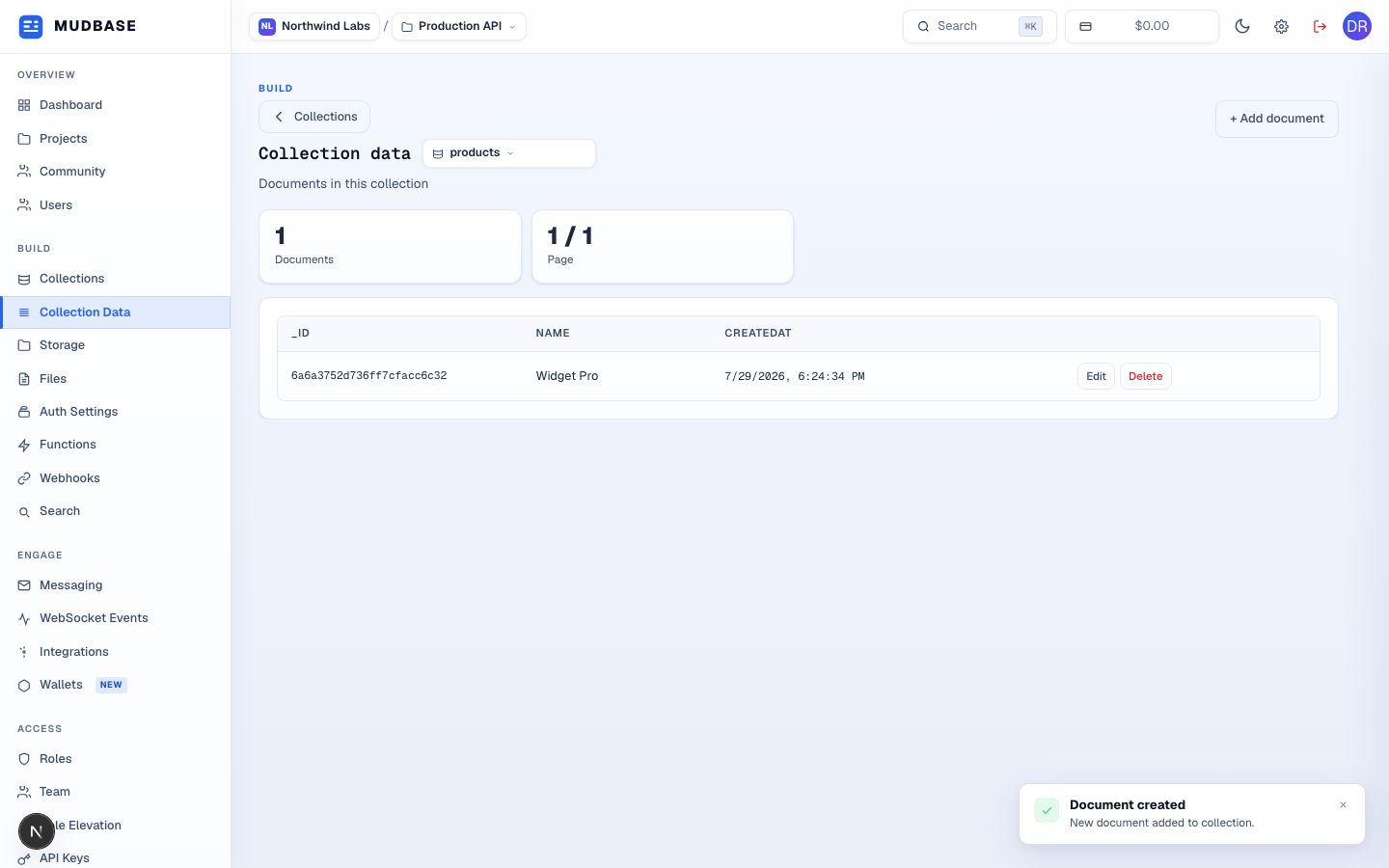
- Edit opens the same form pre-filled with the document's current values; Delete removes it permanently - there is no undo.
Note
Every field type your app might send (string, number, boolean, date, and so on) is editable here as plain text or the matching control - this page is meant for quick manual edits and spot-checks, not bulk data management.