Console Guides
Settings
Settings covers four distinct areas across its tabs: your own account, the organization and its team, billing, and your account's own security - not the project's data or auth configuration.
Find it
Settings is reached from the gear icon in the top bar, not the sidebar.
Account
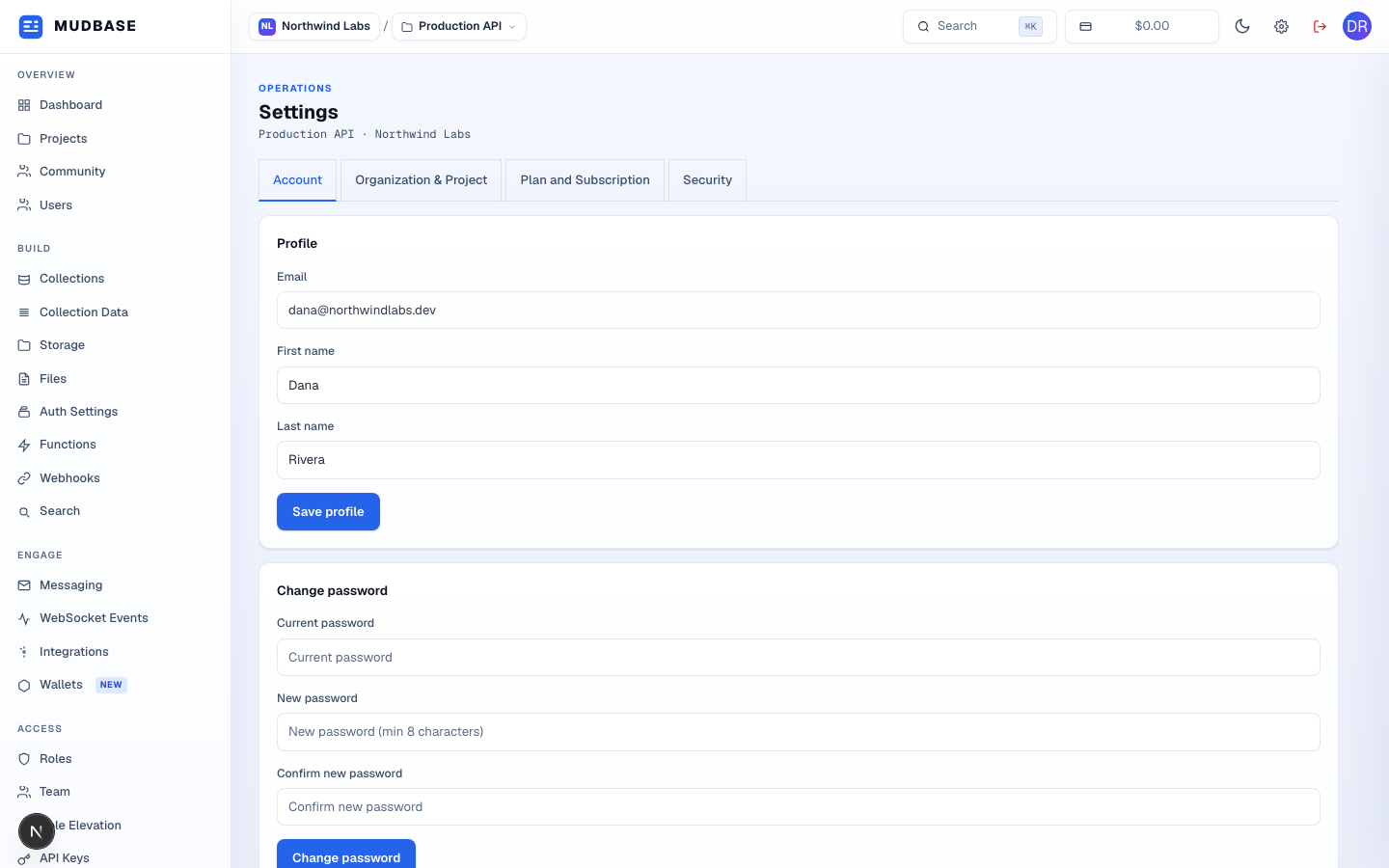
- Switch between Account, Organization & Project, Plan and Subscription, and Security here.
- Update your name and click Save profile. Email address is shown but managed separately from support.
Change password below the profile card requires your current password and immediately invalidates every other session you're logged into.
Organization & Project
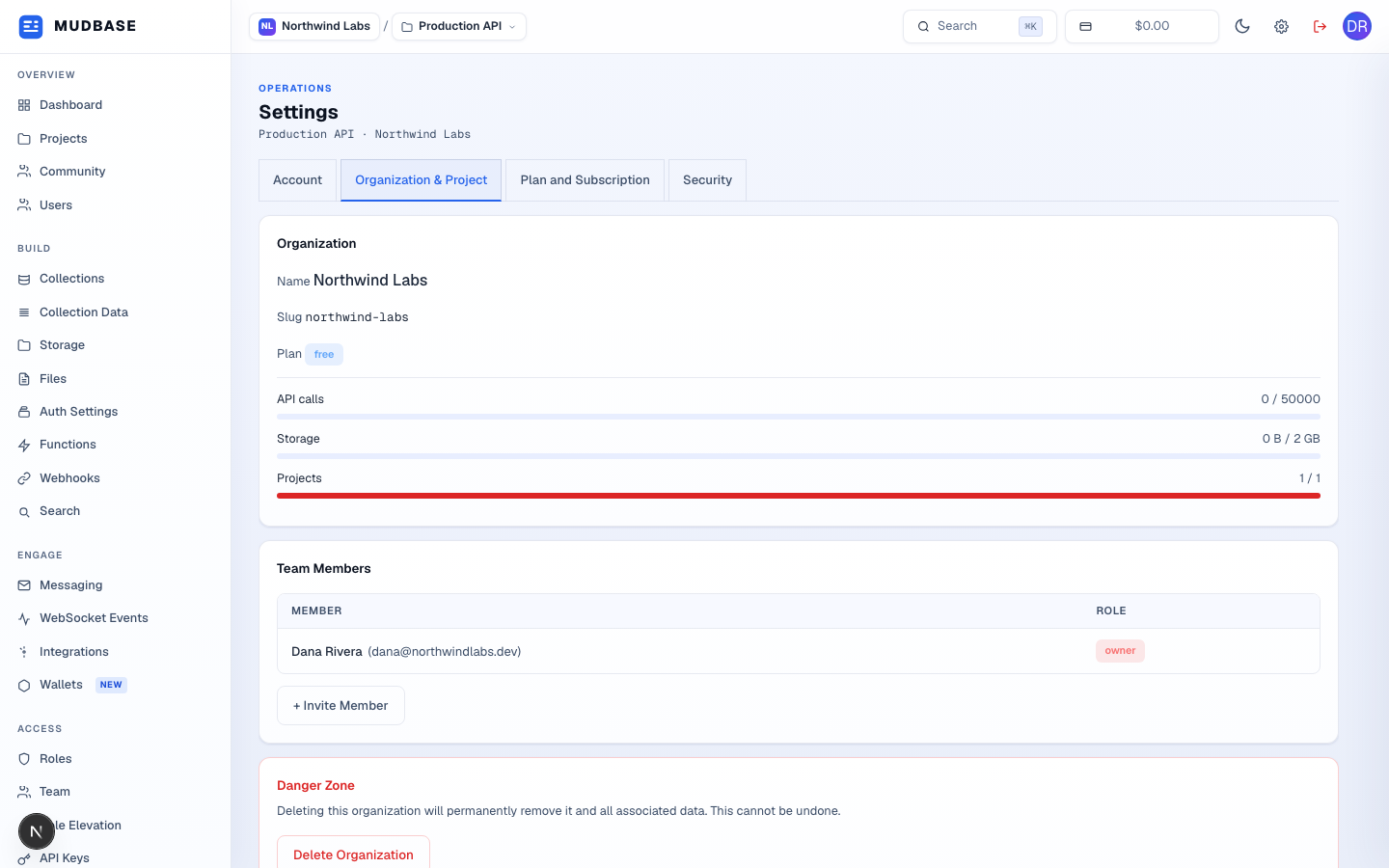
- Organization name, slug, and current plan.
- The same API calls / storage / projects bars shown on the dashboard, org-wide.
- The full member list and their roles, with + Invite Member - the same list as the Team page.
- Delete Organization permanently removes the org and every project, collection, and file inside it. This cannot be undone.
Plan and Subscription
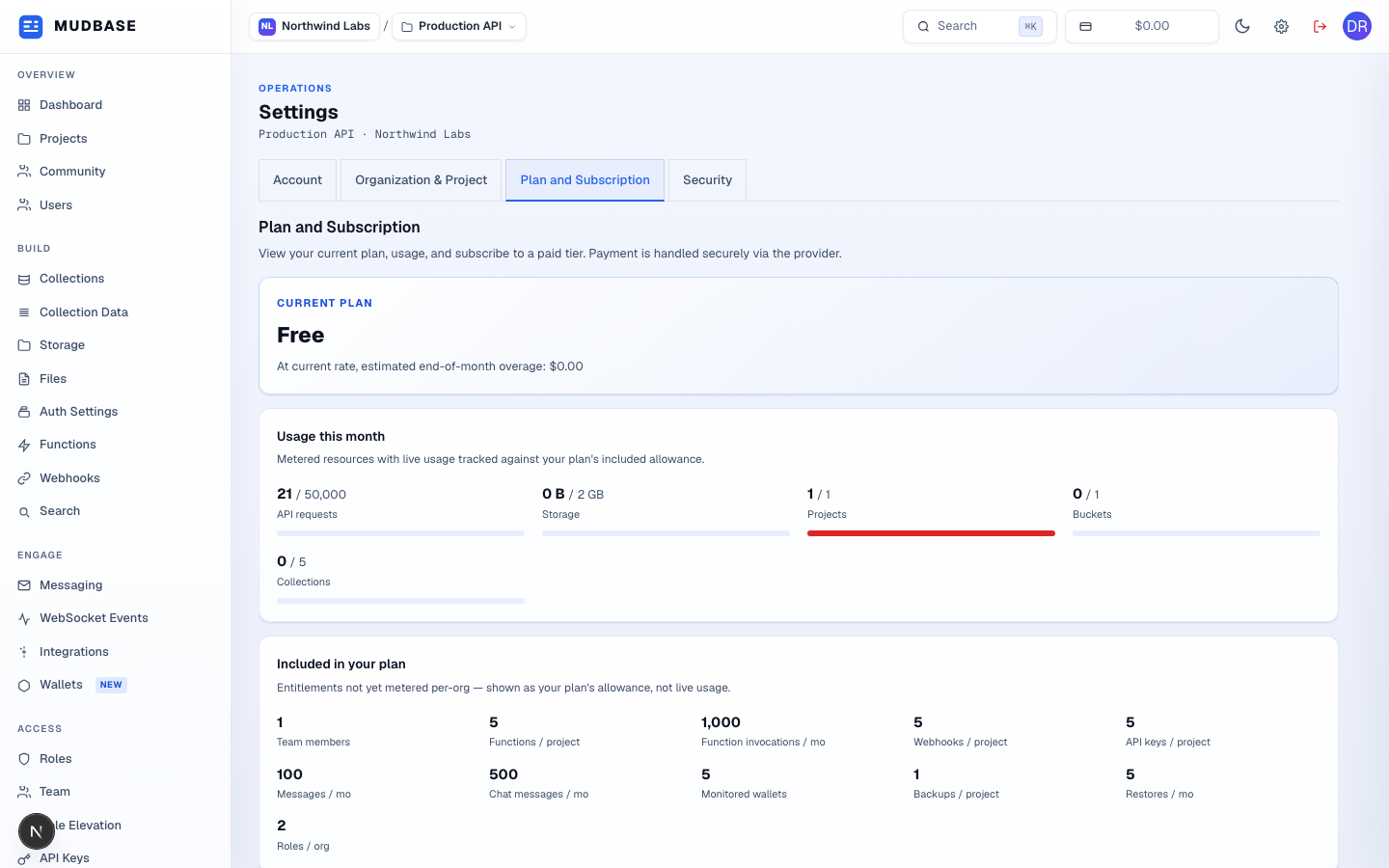
Shows your current plan, live metered usage against its included allowance (API requests, storage, projects, buckets, collections), and the full list of what's included at this tier. Upgrading is handled securely through the payment provider.
Security
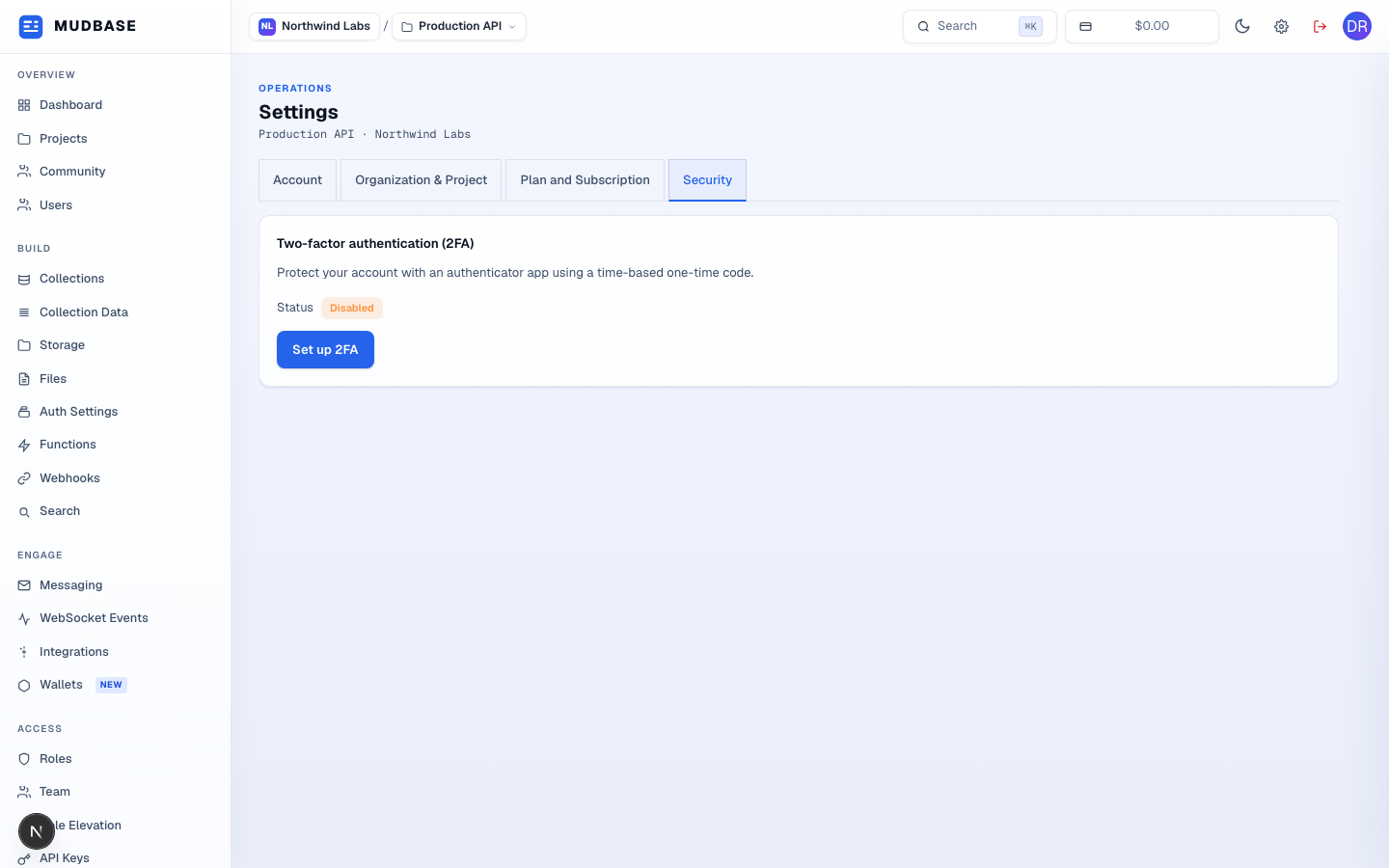
- Shows whether two-factor authentication is currently enabled for your own login.
- Click Set up 2FA to scan a QR code into an authenticator app and require a time-based one-time code on every future sign-in.
Note
This is about your own console access. To configure sign-in behavior for your app's end users (OTP, Magic Link, CAPTCHA, email verification), see Auth Settings instead.